
Browser SSH
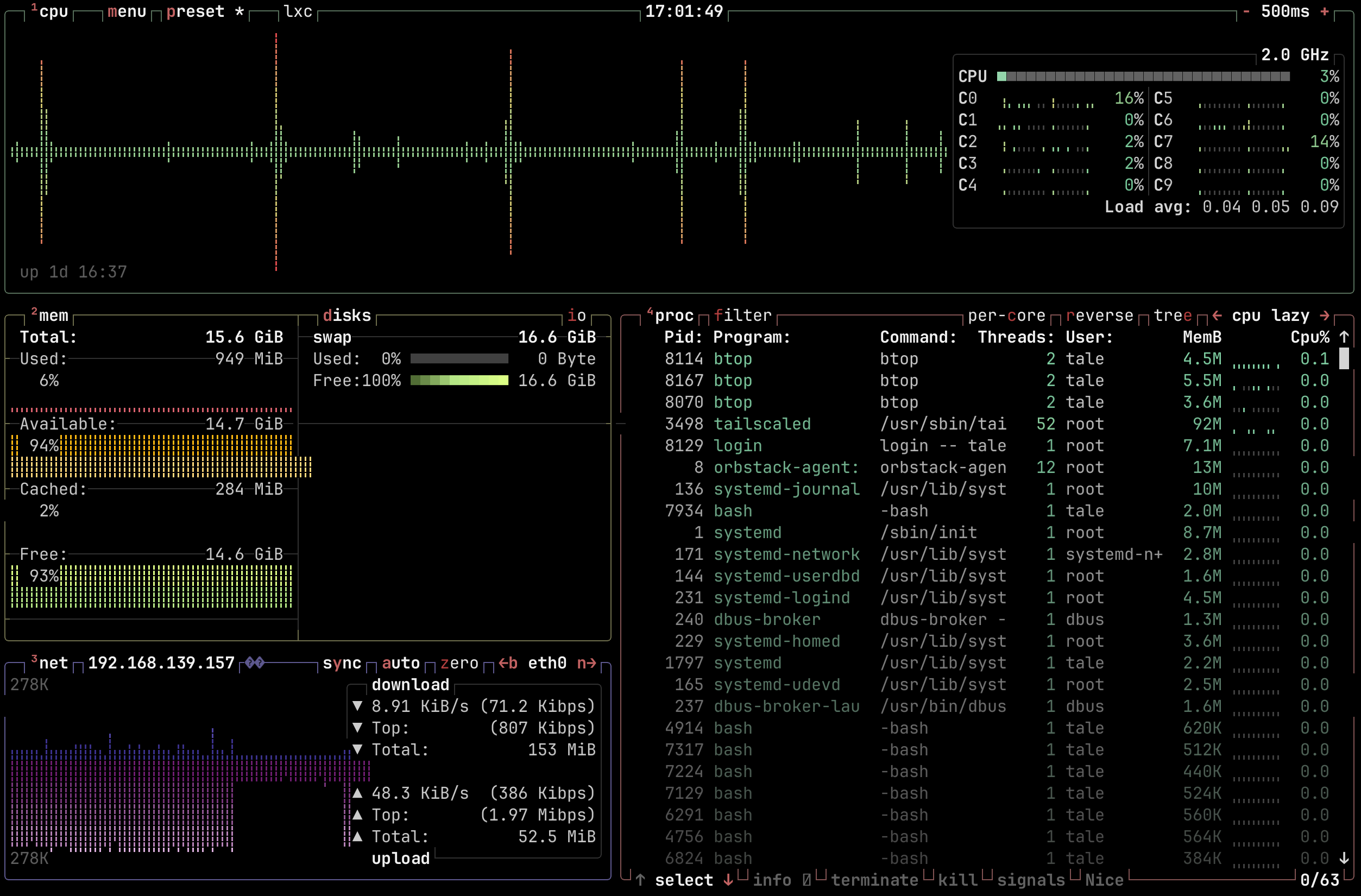
btop running over browser SSHBrowser SSH allows a user to open an SSH session to any accesible node in the Tailnet directly from the browser. It spins up an ephemeral Tailscale node that joins the tailnet for the duration of the SSH session.
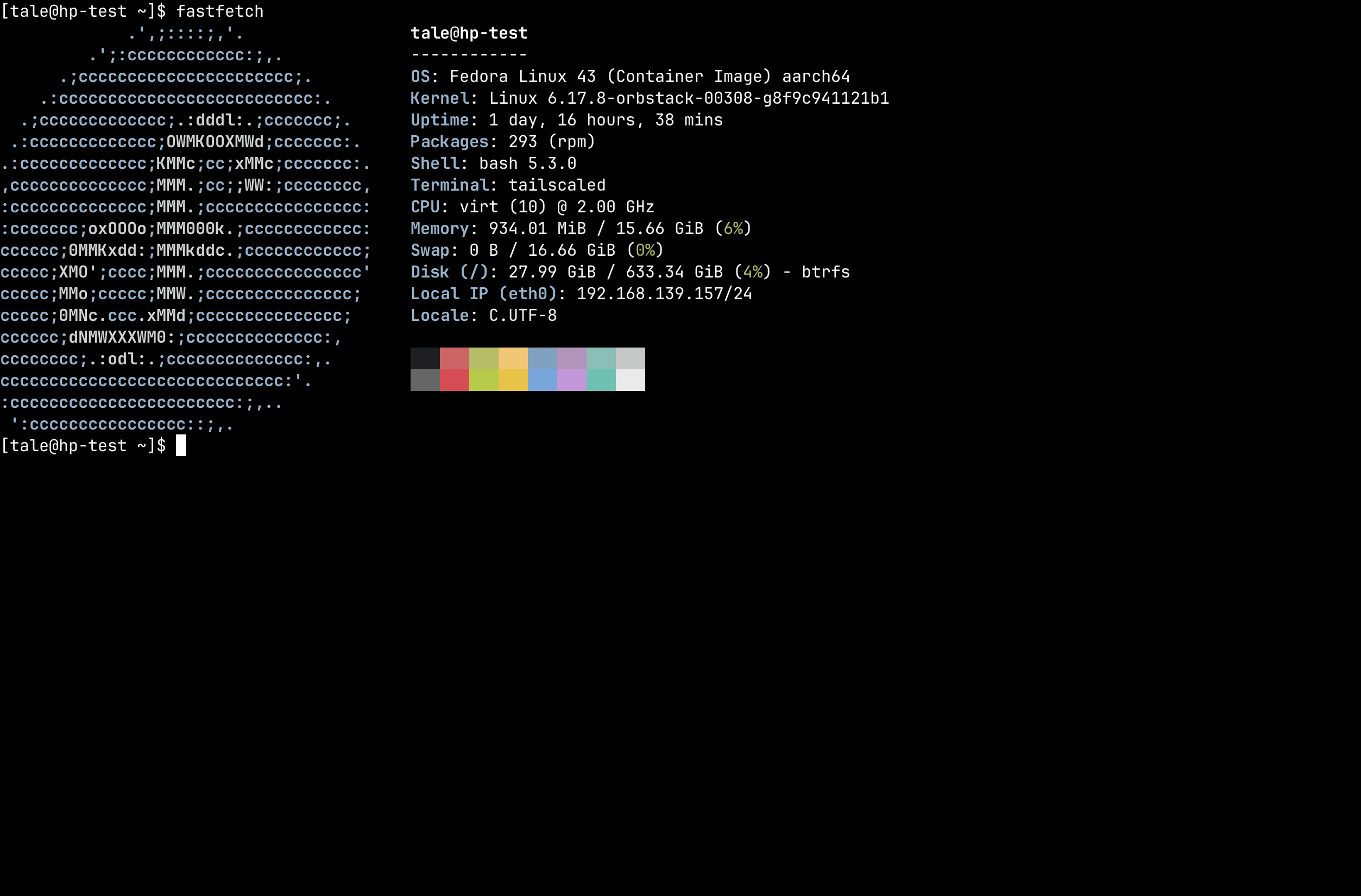
fastfetch with Nerd Font iconsPrerequisites
- Headscale 0.28 or newer is required.
- Target nodes must have Tailscale SSH enabled (
tailscale up --ssh). - Users must be logged-in via OIDC (API key logins cannot use browser SSH).
- The Headplane Agent must be enabled and configured.
How It Works
TIP
While we use Ghostty (via restty) to render the terminal, the SSH connection is opened with a TERM value of xterm-256color for maximum compatibility. Nerd Font glyphs are supported out of the box — the terminal ships with a self-hosted JetBrains Mono Nerd Font.
When a user opens an SSH session from the UI, the browser:
- Loads a WASM module that runs a minimal Tailscale node using userspace WireGuard. This node will connect to the tailnet via a pre-auth key.
- Opens an SSH session to the target node's Tailscale IP address over the tunnel and passes it to the browser.
- Using restty (a Ghostty-based WASM terminal emulator), the browser renders a full-featured terminal and proxies the SSH session to it.
Reverse Proxy Configuration
Browser SSH requires that the browser can reach both Headplane and Headscale directly. If either is behind a reverse proxy, the proxy must be configured to support WebSocket connections — this is how the WASM node communicates with DERP relay servers.
Required Headers
Your reverse proxy must forward these headers for Headscale's DERP endpoint:
| Header | Value |
|---|---|
Upgrade | websocket |
Connection | Upgrade |
Sec-WebSocket-Protocol | forwarded as-is (Tailscale uses derp) |
CORS Headers
Headscale must be accessible from the origin where Headplane is served. If Headplane and Headscale are on different origins (different hosts or ports), your reverse proxy must add CORS headers to Headscale responses:
| Header | Value |
|---|---|
Access-Control-Allow-Origin | The origin of your Headplane instance |
Access-Control-Allow-Methods | GET, POST, OPTIONS |
Access-Control-Allow-Headers | Content-Type, Upgrade, Sec-WebSocket-Protocol |
Example: Caddy
# Headscale
hs.example.com {
    reverse_proxy localhost:8080

    # If Headplane is on a different origin:
    header Access-Control-Allow-Origin "https://headplane.example.com"
    header Access-Control-Allow-Methods "GET, POST, OPTIONS"
    header Access-Control-Allow-Headers "Content-Type, Upgrade, Sec-WebSocket-Protocol"
}
Caddy handles WebSocket upgrades automatically — no extra configuration needed.
Example: nginx
# Headscale
server {
    listen 443 ssl;
    server_name hs.example.com;

    location / {
        proxy_pass http://localhost:8080;
        proxy_http_version 1.1;
        proxy_set_header Upgrade $http_upgrade;
        proxy_set_header Connection "upgrade";
        proxy_set_header Host $host;

        # If Headplane is on a different origin:
        add_header Access-Control-Allow-Origin "https://headplane.example.com" always;
        add_header Access-Control-Allow-Methods "GET, POST, OPTIONS" always;
        add_header Access-Control-Allow-Headers "Content-Type, Upgrade, Sec-WebSocket-Protocol" always;
    }
}
Same-Origin Setup
If Headplane and Headscale share the same origin (e.g. a single reverse proxy routing /admin to Headplane and everything else to Headscale), CORS headers are not needed. WebSocket upgrade forwarding is still required.
Troubleshooting
SSH Not Available
Error: "This version of Headplane was not built with browser SSH support."
The WASM assets (hp_ssh.wasm and wasm_exec.js) are missing. Rebuild with ./build.sh --wasm or ensure your Docker image was built with the --wasm flag.
Agent Required
Error: "Browser SSH is only available when the Headplane agent integration is enabled."
The Headplane Agent is not enabled. Browser SSH depends on the agent for Tailnet connectivity and ephemeral node cleanup. See the Agent documentation for setup instructions.
OIDC Required
Error: "Browser SSH is only available when OIDC authentication is enabled."
Browser SSH requires OIDC authentication to generate pre-auth keys tied to a Headscale user. API key logins do not have an associated Headscale user identity. Log in via your configured OIDC provider instead.
User Not Linked
Error: "You'll need to link your user account to a Headscale user before you can use Browser SSH."
Your OIDC account does not match any user in Headscale. You must authenticate with Headscale at least once before using Browser SSH, so that a Headscale user is created and linked to your OIDC identity.
Node Not Found
Error: "No node found with hostname ..."
The node name in the URL does not match any node registered in Headscale. The node may have been renamed or removed. Navigate back to the machines list and try again.
Node Offline
Headplane checks whether the target node is connected to the Tailnet before attempting an SSH session. If the node is offline, you'll see an error page with a Retry Connection button. Ensure the node is running and connected to Headscale, then retry.
Connection fails with EOF or hangs
- Check
server_urlin your Headscale config. If Headscale runs on a non-standard port,server_urlmust include it (e.g.https://hs.example.com:8443). The embedded DERP server derives its advertised port from this value. Do not put the DERP port in Headplane'sheadscale.public_url— that setting is used for display in the UI and changing it will break registration commands and auth key instructions. - Verify reverse proxy WebSocket support. The proxy in front of Headscale must forward
Upgrade: websocketheaders. Without this, the DERP connection will fail immediately. - Check CORS if on different origins. Open the browser console and look for CORS errors. If Headplane and Headscale are on different origins, CORS headers must be configured on Headscale's proxy.
- Verify that the target node has Tailscale SSH enabled (
tailscale up --ssh). - Check the browser console for WASM errors or DERP connection failures.
"failed to look up local user *"
This error appears in the terminal when Headscale SSH ACLs use "users": ["*"], which some Tailscale versions interpret as a literal username rather than a wildcard. To fix this, change your ACL SSH rules to use "autogroup:nonroot" or explicit usernames instead:
// Before (broken on some versions)
{ "action": "accept", "src": ["autogroup:member"], "dst": ["autogroup:self"], "users": ["*"] }

// After (recommended)
{ "action": "accept", "src": ["autogroup:member"], "dst": ["autogroup:self"], "users": ["autogroup:nonroot"] }
Terminal opens but input doesn't work
- Ensure the target node's Tailscale SSH ACLs permit the user. The SSH connection succeeds at the transport level but the session may be rejected by the node's SSH policy.
- Check that the username you entered is a valid Linux user on the target node. If the user doesn't exist, the SSH session will appear to connect but immediately fail.
"SSH error: ssh: handshake failed: ssh: no common algorithm"
The target node's SSH server doesn't support any of the algorithms offered by the Go SSH client. This usually means the target node is running a very old or very new version of OpenSSH with non-default algorithm configuration. Updating Tailscale on the target node typically resolves this.
SSH session connects but immediately disconnects
- The target node may not have an SSH server installed or running. Tailscale SSH (
tailscale up --ssh) runs its own SSH server, but if Tailscale SSH is not enabled, the node needs a standard SSH server (e.g.openssh-server) listening on port 22. - The node may have a firewall blocking port 22 even for Tailnet connections.